
Tesla Roadster Meme ↗
Driver and car photos · About 15 seconds · Vertical 480p · Reference soundtrack
Put yourself behind the wheel with Flying Car AI. Send your car into the air. Choose a traffic escape, a cinematic chase, or a ramp stunt, then add the photos your scene needs.
Template references · Your result uses your uploaded photos.
Your car. Three extraordinary exits.
Escape city traffic, turn a chase into a flight, or take on the ramp. Watch these original template references to find your scene.
Driver and car photos · About 15 seconds · Vertical 480p · Reference soundtrack
Driver and car photos · About 13 seconds · Vertical 480p · Reference soundtrack
Car photo only · About 17 seconds · Vertical 4:5 · 480p · Reference soundtrack
These videos are template references. Your result is created from your photos and may differ in appearance and detail.
Your photos. The same action.
Choose the action, add your subjects, and bring them into the scene.
Watch the reference and choose a flying car AI template. Look at the full sequence, from the driver reveal to the landing. Your selection sets the action and the required photos; previewing a scene does not start a generation.
Add one driver photo and one car photo for either escape. For Ramp Stunt, add just the car. Use a clear subject in each image. You do not need to pose inside a vehicle, photograph a jump, or recreate the reference location.
Check your photos and chosen scene, then create your flying car AI video. Sign in to keep track of your generation in My creations. Review the finished clip before downloading, especially the interior shots, rotation, and landing.
The two flying car AI escape templates give each photo a specific job. The driver image guides the person's face, hair, clothing, and overall visible appearance. The car image guides the vehicle's shape, color, and recognizable details. Separate references let you choose the person and vehicle independently without preparing a combined image first. A flying car AI edit also needs to hold those choices together across camera cuts. In the escape scenes, the reference moves between the cabin and exterior views. The intended result keeps the same driver and main car through that sequence. Reflections, dark windows, hands, and brief occlusions can affect how much detail remains visible. Each flying car AI template supplies a complete scene. Changing your photos replaces the subjects, while the location and action follow the reference.
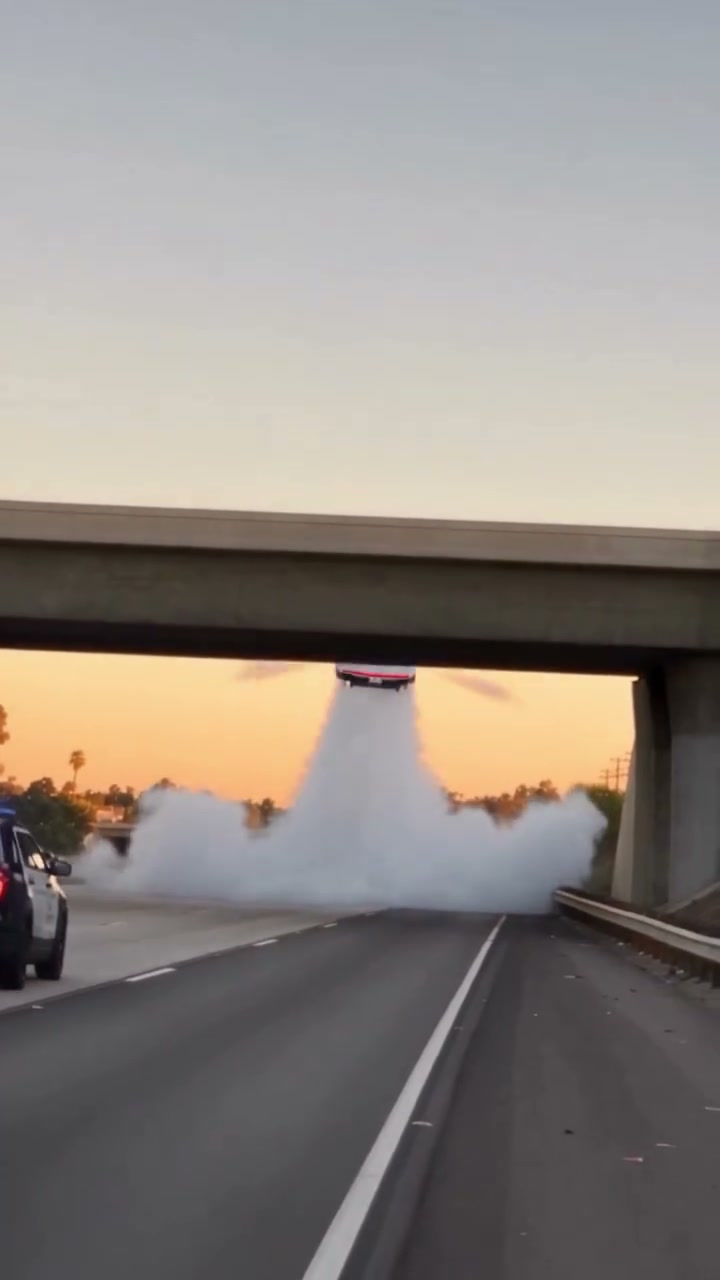
For a flying car AI driver, show one person’s face and upper body clearly. Avoid deep shadows or group photos. Police Escape includes a face-covering moment; the template determines when the driver is revealed. For a flying car AI vehicle, show the whole body and wheels. A three-quarter view reveals the front and side. Avoid cropped bumpers or overlapping cars. Smoke, thrusters and ramps come from the template. The flying car AI generator uses the visible details as guidance. A single photograph cannot show every interior surface or hidden angle. Badges, plate lettering, wheel geometry, reflections, and unseen surfaces may vary in the result. Choose your photo for a recognizable overall vehicle, then inspect the generated clip for details that matter to you.
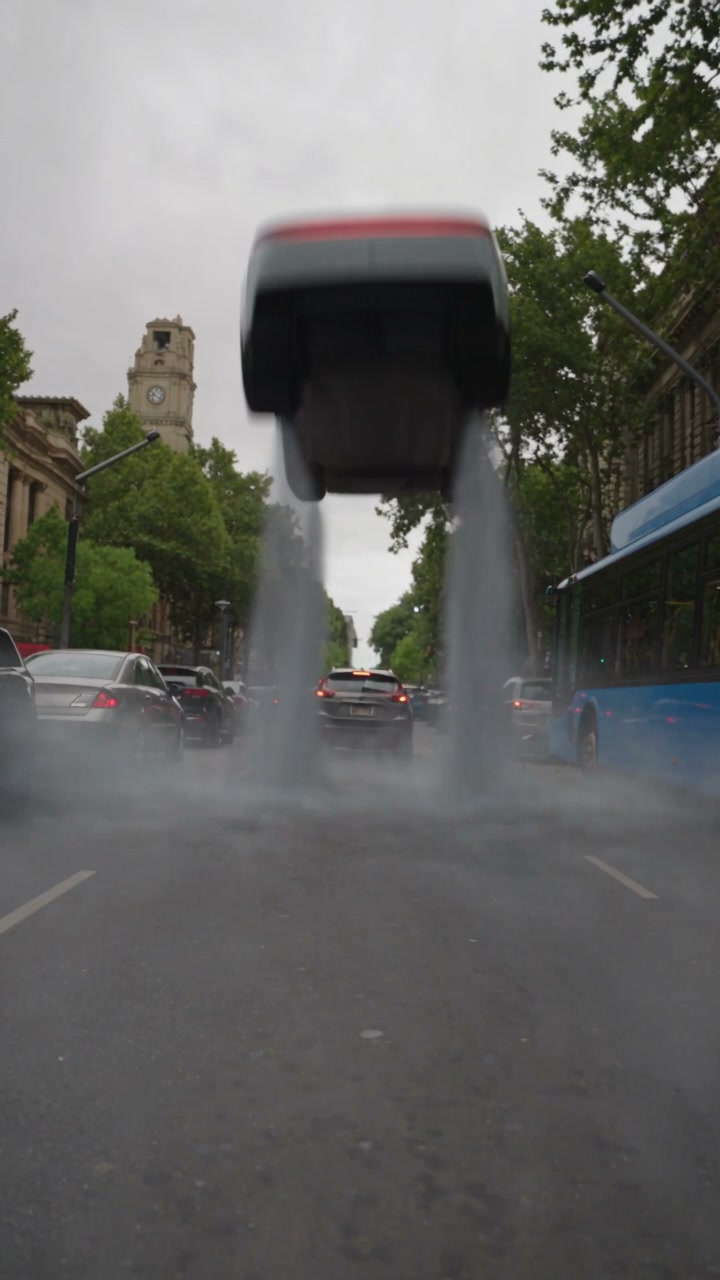
Traffic Escape works around an everyday situation: a driver caught in a queue of cars. The sudden takeoff creates the contrast, and the return to the cabin finishes the joke. It is a useful choice when you want the person's reaction to carry the scene alongside the vehicle. Police Escape uses a more eventful sequence. The pursued car, overpass, airborne movement, and reaction shots give it the rhythm of a compact action scene. Keep its fictional context clear when sharing your flying car AI edit, especially if the photo shows a recognizable person or vehicle. Ramp Stunt removes the need for a character portrait and concentrates on motion. The wall climb, rotation, and landing give viewers several angles of the replacement car. It suits a vehicle-focused concept or a playful edit for a car enthusiast. It does not demonstrate how the photographed vehicle performs in the real world.
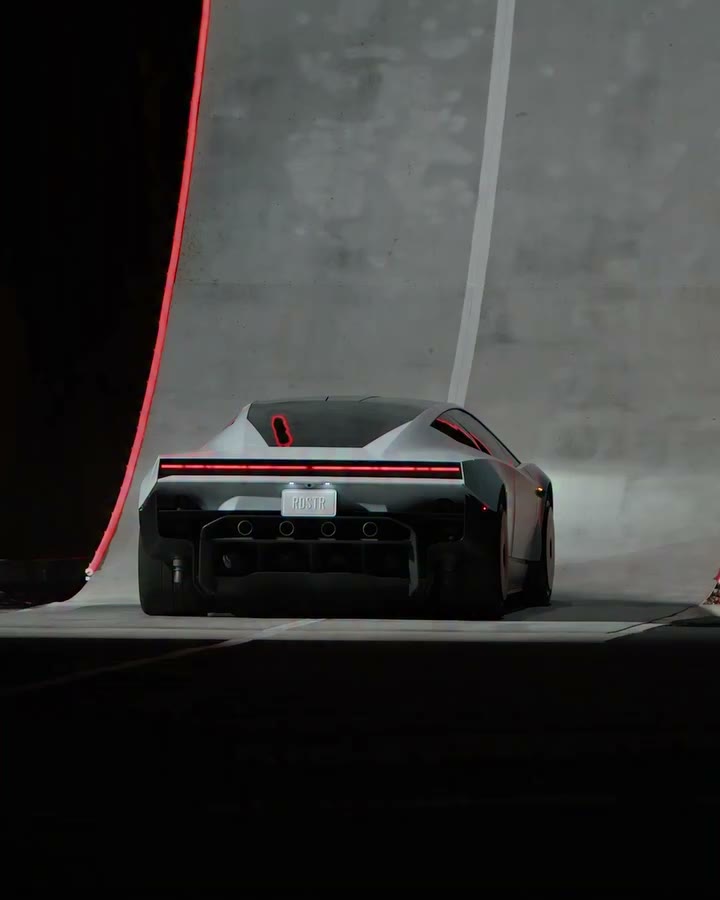
All three references use a vertical frame. The selected template determines the sequence and approximate length: Traffic Escape is about 13 seconds, Police Escape about 15 seconds, and Ramp Stunt about 17 seconds. Watch the preview with the whole frame visible so you can assess the climb, clearance, and landing. All three flying car AI templates restore their reference soundtracks. Replacing the driver photo does not request a new voice or personalized dialogue. If you want different music or a voice-over, add it in your editor after downloading and use audio you have permission to share. Flying car AI output is vertical 480p. The size of the original reference file does not establish the resolution of your download. Review your result at the size you plan to publish, including moments when the car rotates or passes through vapor. A short vertical clip can fit naturally into a social story, a car concept post, or an edit shared with friends.
A focused flying car AI workflow, with the scene already prepared.
Give the driver and the car their own clear reference. Both escape scenes use two photos; the ramp uses one car photo.
The chosen template supplies the action, camera and timing. There is no prompt to write or model to choose.
All three flying car AI templates restore their reference soundtracks after creating the replacement visuals.
Completed videos appear in My creations so you can review and download the result before sharing.
Pick one scene or make a collection. Pay once, create on your schedule. No subscription.
Give your favorite car one impossible escape.
$9.90 per video
Try a chase, a traffic escape and a ramp stunt.
$6.63 per video
Make room for different cars, drivers and new takes.
$5.98 per video
Generation and checkout open soon. One completed generation uses one video. Watching previews uses none.
Photos, scenes, sound and your finished video.
Traffic Escape and Police Escape use your photos to guide the main driver and vehicle. Ramp Stunt uses a car photo for the moving stunt vehicle. Each template supplies the scene, action, timing, and camera sequence. Background traffic and other supporting subjects keep their original roles.
The templates are designed around the car in your uploaded photo, so you can choose another vehicle. A clear, complete car image gives the generator more useful visual information. Large differences in vehicle shape may affect the result. Flying Car AI is independent and is not affiliated with Tesla.
Yes. Add one driver photo and one car photo in their labeled fields. The two images control different subjects. Ramp Stunt needs only the car image. You do not need a single photo showing the driver sitting in the car.
No. Select a template and upload the matching photos. The scene reference and instructions are prepared for that template. The page does not offer free-form scene editing, custom reference-video uploads, or model selection.
The photos guide their appearance, but exact identity and detail are not guaranteed. Review faces, hands, vehicle shape, and transitions between interior and exterior views. Fast motion, small subjects, darkness, and smoke can reduce recognizable detail.
All three flying car AI templates restore their reference soundtracks. The tool does not create a new voice from the driver photo. You can edit the downloaded video to add a soundtrack you are allowed to use.
Choose among the three scenes shown on this page. Each has its own location and action sequence. Changing the uploaded car or driver changes the subjects being recreated; it does not select a new road, camera plan, or maneuver.
Check its status in My creations. Avoid submitting the same request again just because it has not finished. A second deliberate generation is a separate task. If you need support, include the task identifier so the specific request can be checked.
The initial flying car AI previews are the reference templates. Your own result appears after you submit a generation. Compare the finished video with your selected reference and uploaded subjects; the reference preview is not a guarantee of an identical result.
Use photos you own or have permission to use, including permission for the people pictured. Keep one intended subject in each upload field. Check the file requirements shown beside the uploader. Permission to use an image does not automatically provide rights to every soundtrack or brand element in a finished edit.
Escape the traffic, take the chase airborne, or send your car up the ramp. Choose the flying car AI template, add the photos that scene asks for, and preview your chosen scene before you sign in to create a video.
Create my flying car AI video